The Audit Question AWS Access Analyzer Can't Answer
"Cloud security Engineer ☁️ | Writing about security & cloud topics ✍️ | Let's connect and dive into the exciting world of security and the cloud! ✨"
Just before we get started, this article was motivated by two different talks, one from AWS re:inforce 2025 and the other at fwd:cloudsec Europe 2026
Ever been asked a question where the answer seems simple but actually takes a ton of effort to get? That was Chris, a security engineer at an organization(it could be any organization you can think of...), on a Monday morning, hit with a request from the compliance officer for an inventory of every principal that can read/write to the customer-data S3 bucket across all accounts, and a justification for why each one has that access.
Before Chris can even start, there are a few questions that need answering first:
Who can access the customer-data S3 bucket, and what can they do to it?
How was a given principal able to update customer data in our production account?
Does that access follow least privilege?
What else can that principal touch in the production account?
Simple enough on paper. But with teams increasingly plugging AI agents into their workflows(this is not to avoid AI), the number of permission sets floating around has quietly exploded, and half of them can't be accounted for anymore. This is where it becomes a pain in the ass, and it gets worse if we are trying to answer these questions across multiple accounts.

The First Identified Solution
One team member's first suggestion was to use AWS Access Analyzer. This seems like the perfect solution because it continually monitors and identifies broad IAM access, inspects IAM users and roles with unused access, and helps refine permissions. Let's try that out and see how far it actually gets him.
Demo
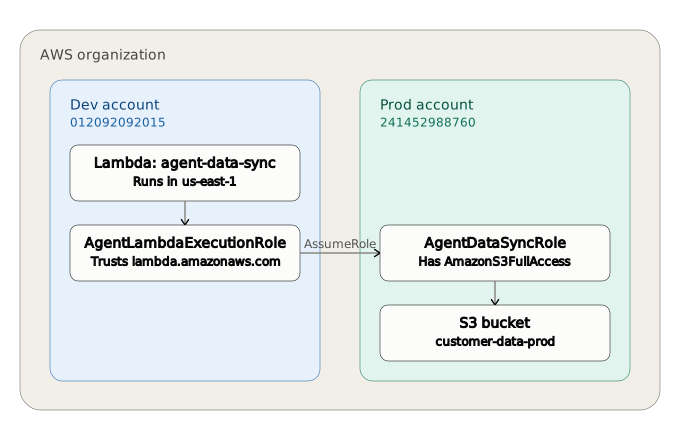
For the demo simulation, the customer's S3 data bucket is digicents-customer-data-prod. To mirror what's actually happening across most of an Organization's real accounts, we set up a small version of the same pattern: a Lambda function (agent-data-sync) running in a Dev account, assuming a role (AgentDataSyncRole) in the Prod account to reach the bucket. That role was granted AmazonS3FullAccess, even though the Lambda only ever calls GetObject and ListObjects, the exact kind of "we'll scope it down later" grant that never actually gets scoped down.
Account-Level Access Analyser
Next, we enabled an account-level Access Analyzer in the Prod account. Within minutes, it flagged AgentDataSyncRole under External Access findings, correctly identifying that a principal from another account could assume it.
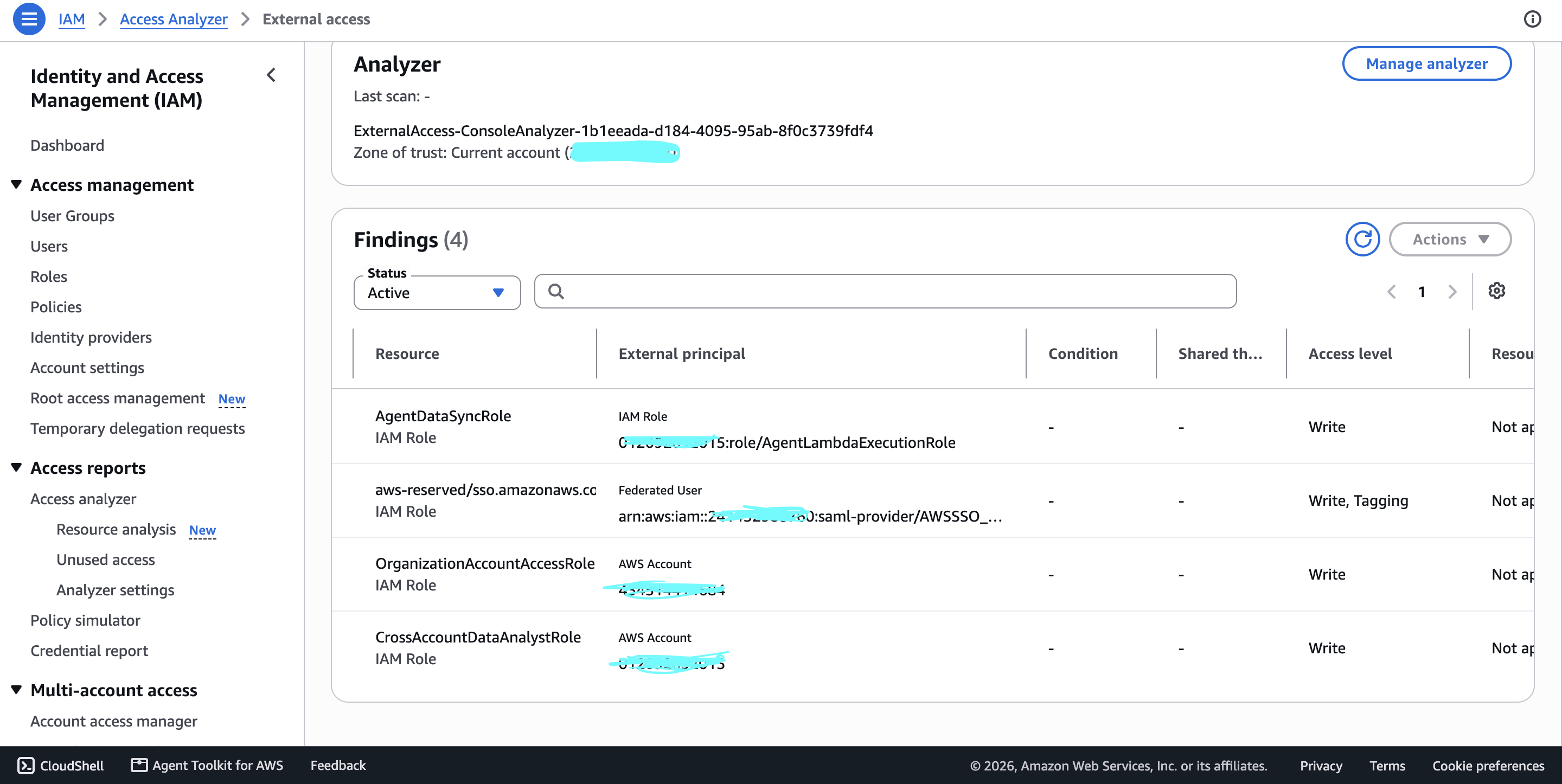
This is exactly the finding you were looking for AgentDataSyncRole shows up with the external principal, confirming the account-level analyzer correctly traced the cross-account trust straight back to the Dev role, with Write access level flagged.
The other three findings are expected and, in this case, could be flagged as "noise". An account-level analyzer catches everything, including access that's completely expected and sanctioned, which is exactly why teams lean toward org-level at scale.
from these findings, we can see it partially only answers question 1 on:
Who can access our cloud resources, and what can they do to them?
Access Analyzer flagged a trust relationship on an IAM role with s3 full access permission and an external able to assume it. But it never explicitly mentions which buckets the role have access to. so answering the real question still requires opening every flagged role individually and manually checking its attached policies against the resource you actually care about.
Next up: try the same thing with the organization-level analyzer in the prod account and see what it shows.
Org-Level Access Analyzer
From the screenshot below, Access Analyzer scans digicents-customer-data-prod directly and returns eight (8) findings, this time listing exactly which API calls they're allowed to make. Not a vague "Write" bucket of permissions.
But it still does not give us a clear Principal; rather, we see the AWSServiceRoleForTrustedAdvisor which doesn't make sense from an auditor's perspective.
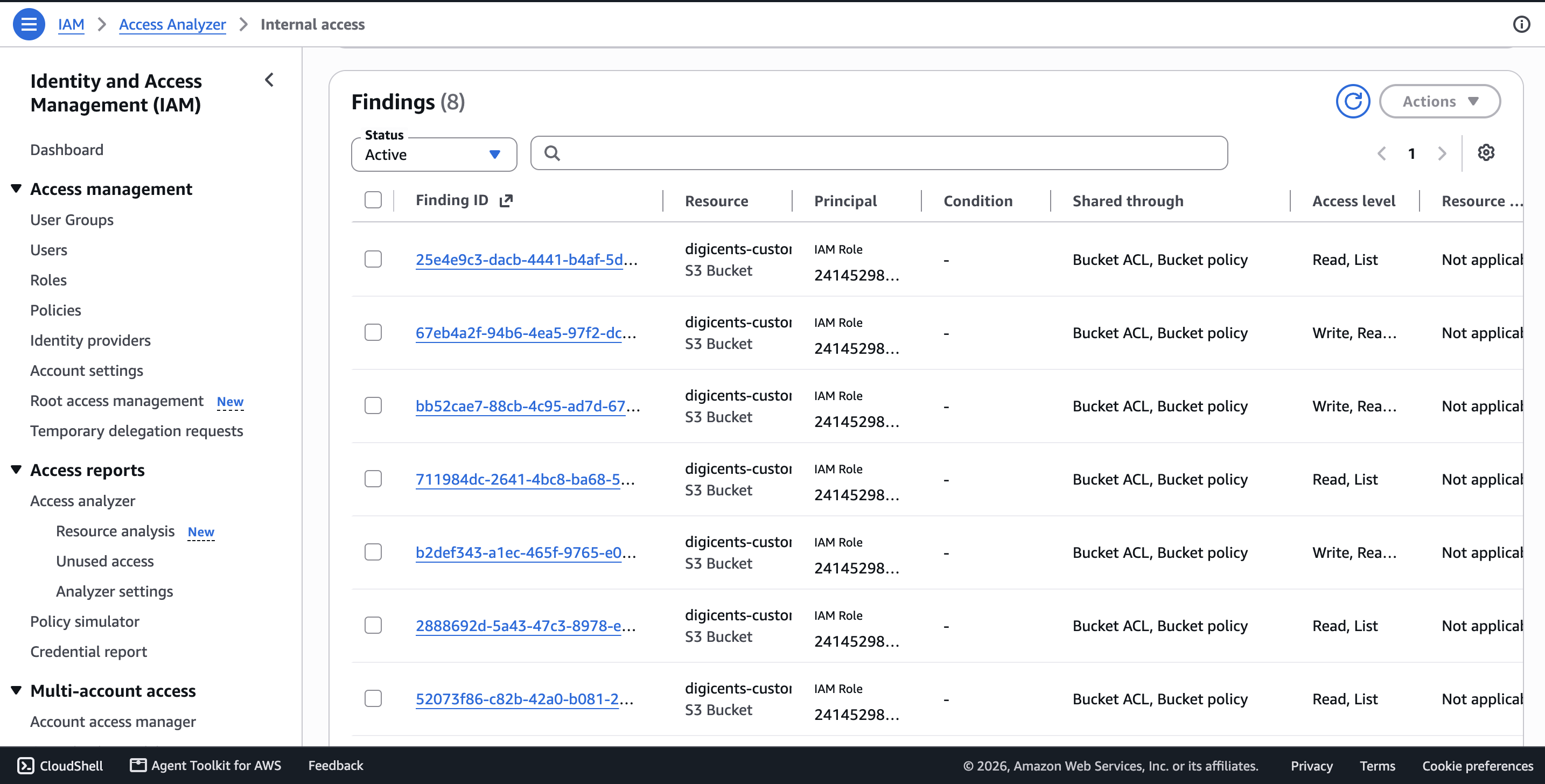
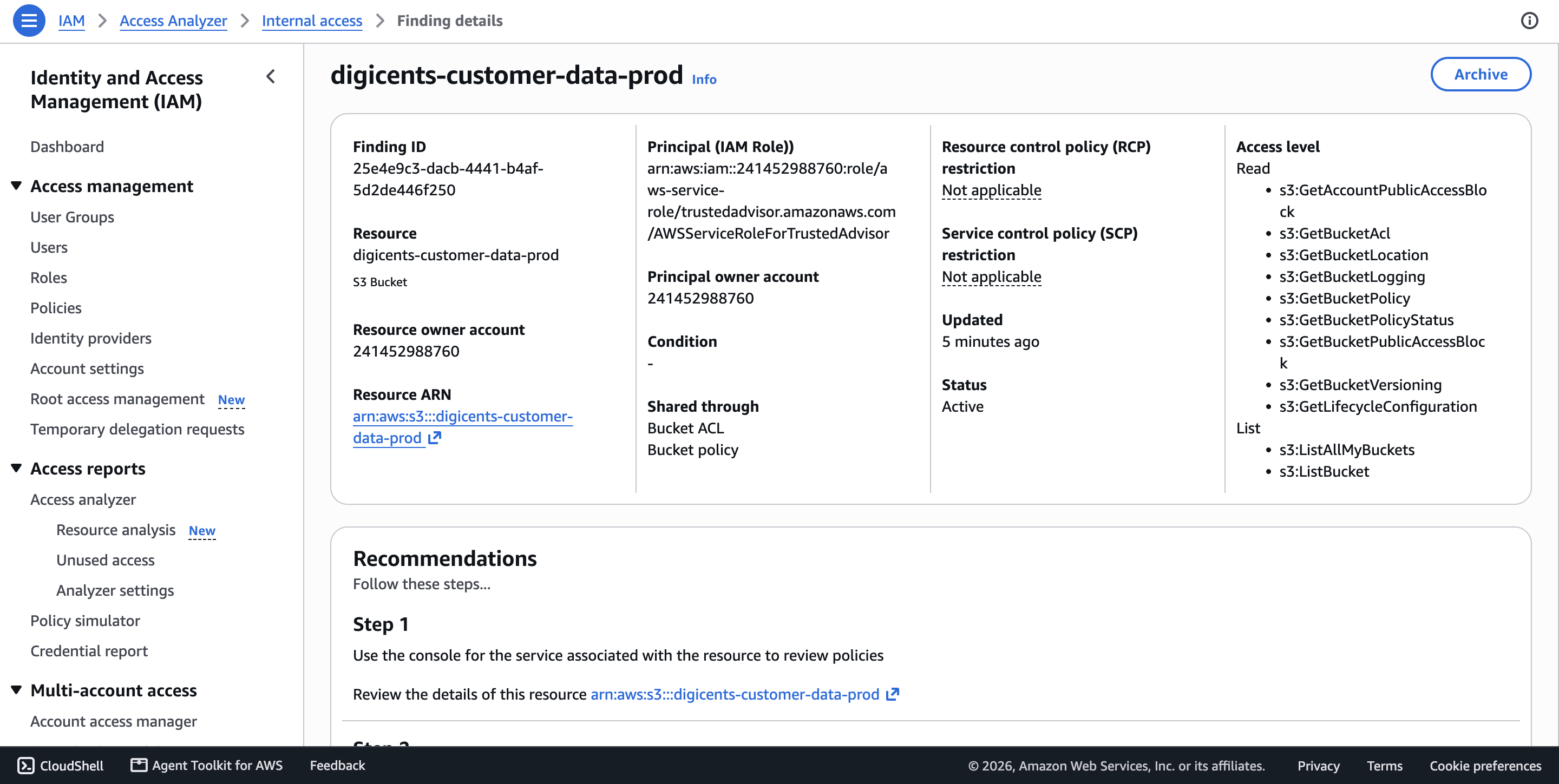
you will need to stitch both reports together, to get an almost complete answer for the question
Who can access the bucket, and what can they do?
and Access Analyzer never does that stitching for you.
Now imagine doing this stitching for over 100 AWS accounts and multiple services. That's a nightmare for a Security Engineer.
This is exactly the kind of problem a graph is built for. Instead of three separate reports that each answer a fragment of the question, what if every principal, every role, every trust relationship, and every resource lived as connected nodes in a single graph, one you could actually query?
"Show me everything that can reach this bucket" stops being a manual cross-referencing exercise and becomes a graph traversal. That's precisely what ARIA-gv sets out to do.
Access Rights for Identity on AWS-graph Visualisation (ARIA-gv)
ARIA-gv is a graph visualisation tool that gives a visual representation of identities, their permissions, and how they connect to resources across your entire AWS organization. It pulls data from IAM Identity Center, IAM, and IAM Access Analyzer, the exact same sources we've been manually stitching together this whole time, and loads it into an Amazon Neptune graph, where relationships between users, groups, permission sets, roles, accounts, and resources are all represented as connected nodes you can actually query, instead of reports you have to cross-reference by hand.
In other words, everything we did manually in the last section pulling an External Access finding here, an Internal Access finding there, and mentally joining them ourselves is exactly what ARIA-gv automates and scales across every account in the Organisation.
Note: The setup below focuses on a cross-account implementation. In this scenario, the production account is where the customer bucket being evaluated lives, and we deploy the main ARIA-gv stack in that account.
while, The management account, or delegated administrator, owns IAM Identity Center and the IAM Access Analyzer resources used by the solution.
We will follow the steps here to set up the implementation in our current architecture.
1. Choose One Deployment Region
You need to specify a region using the "aws configure" command to deploy the following services needed for the setup of the Main ARIA-gv stack
Lambda functions
S3 source, export, and template buckets
DynamoDB and SQS
Step Functions and EventBridge
Neptune
IAM Identity Center instance
Access Analyzer analyzers
REGION=<desired_region>
PROFILE=<desired_profile_name>
2. Prepare Access Analyzer
ARIA-gv requires three organization-scoped analyzers: ORGANIZATION_INTERNAL_ACCESS, ORGANIZATION_EXTERNAL_ACCESS, ORGANIZATION_UNUSED_ACCESS
For the Internal Access analyzer, you need to choose a resource type actually to watch. It doesn't monitor everything out of the box, so you have to tell it exactly what you care about. And since I'm only investigating the customer-data bucket, S3 is the only one I need.
The bucket lives in the digicents-prod account, so the internal analyzer should be scoped to that account ID, if it spans across multiple accounts, you will need to add those accounts
Run the command below from the AWS Organizations management account or the IAM Access Analyzer delegated administrator. Then save their ARNs; you'll use them in the commands below.
export AWS_PROFILE=<management_account_or_delaged_administrator_profile>
export AWS_REGION=us-west-2
export AWS_PAGER=""

aws accessanalyzer create-analyzer \
  --analyzer-name AriaOrgInternalAccessAnalyzer \
  --type ORGANIZATION_INTERNAL_ACCESS \
  --configuration '{"internalAccess":{"analysisRule":{"inclusions":[{"accountIds":["ACCOUNT_ID/ACCOUNT_IDs"],"resourceTypes":["AWS::S3::Bucket"]}]}}}' \
  --region "$AWS_REGION"


aws accessanalyzer create-analyzer \
  --analyzer-name AriaOrgExternalAccessAnalyzer \
  --type ORGANIZATION \
  --region "$AWS_REGION"

aws accessanalyzer create-analyzer \
  --analyzer-name AriaOrgUnusedAccessAnalyzer \
  --type ORGANIZATION_UNUSED_ACCESS \
  --region "$AWS_REGION"
3. Run the Bootstrap script
Clone the [repo](http://git clone https://github.com/aws-samples/sample-visualizing-access-rights-for-identity-on-aws.git) and run the aria-bootstrap.sh script. The script creates the source and export bucket, packages the Lambda function, uploads zip files, and stores the bucket name in regional SSM parameters. You should see this after a successful run.
AWS_PROFILE="$PROFILE" \
./aria-bootstrap.sh --region "$REGION"
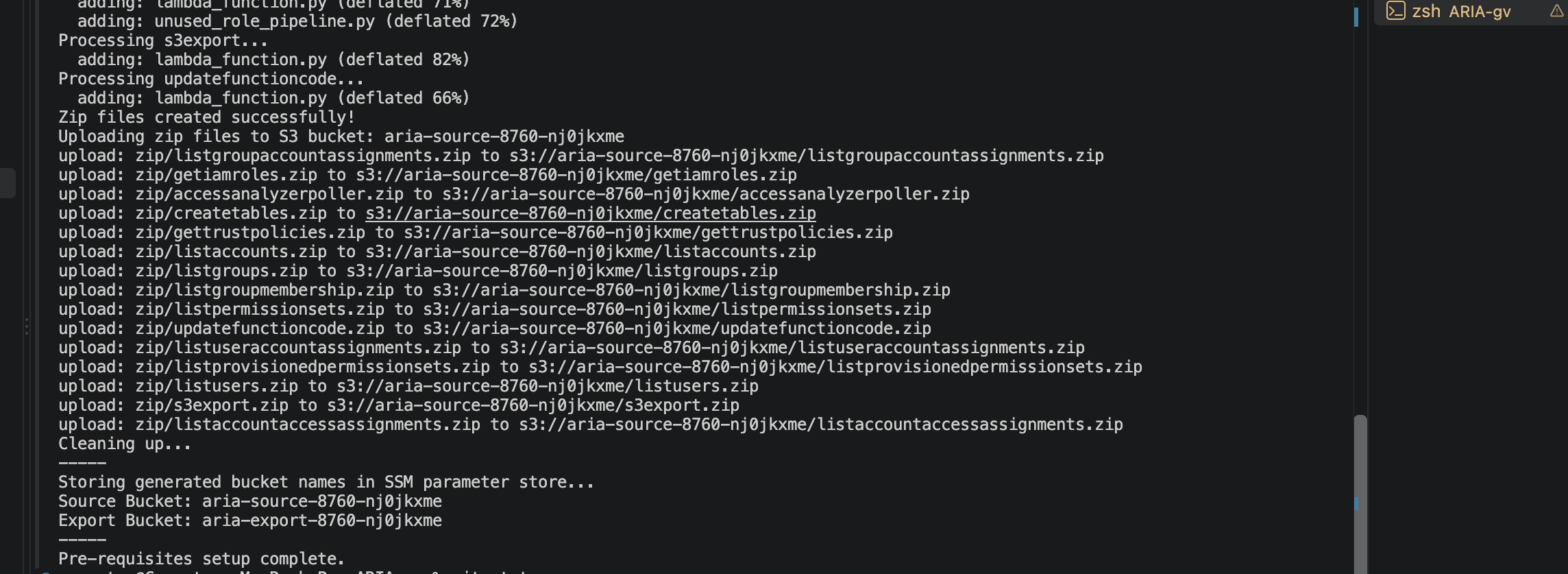
4. Deploy the main ARIA-gv application stack in the target runtime account. This will also generate as outputs the different ARNs you will be needing in other runs.
export AWS_PROFILE=<prod_account_profile>
export AWS_REGION=us-west-2
export AWS_PAGER=""

./deploy-nested-stacks.sh \
  --region "$AWS_REGION" \
  --deploy-neptune true \
  --deploy-neptune-notebook false \
  --internal-access-analyzer-arn "<internal-arn>" \
  --external-access-analyzer-arn "<external-arn>" \
  --unused-access-analyzer-arn "<unused-arn>" \
  --delegated-admin-account-id "<delegated-admin-account-id>" \
  --debug \
  2>&1 | tee deploy-nested-stacks.log

echo "Real exit code: ${PIPESTATUS[0]}"
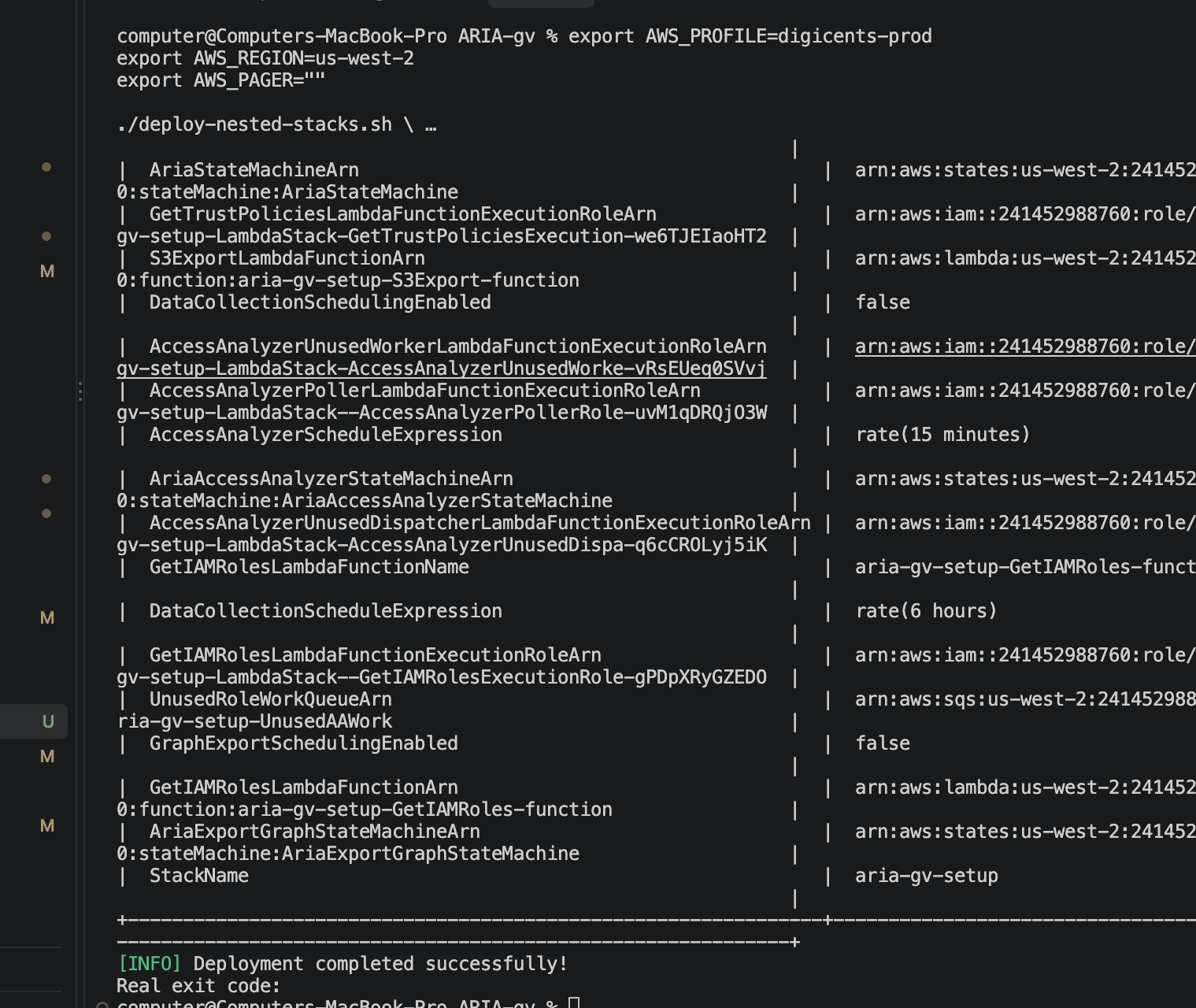
5. Once that finishes, set up the cross-account role to complete the trust chain needed for inventory and Access Analyzer collection.
Step 1: Pull the Lambda execution role ARNs from the previous run. Save all five outputs.
aws cloudformation describe-stacks \
  --stack-name aria-gv-setup \
  --region us-west-2 \
  --profile <prod_account_profile> \
  --query "Stacks[0].Outputs[?OutputKey=='GetIAMRolesLambdaFunctionExecutionRoleArn' || OutputKey=='GetTrustPoliciesLambdaFunctionExecutionRoleArn' || OutputKey=='AccessAnalyzerPollerLambdaFunctionExecutionRoleArn' || OutputKey=='AccessAnalyzerUnusedDispatcherLambdaFunctionExecutionRoleArn' || OutputKey=='AccessAnalyzerUnusedWorkerLambdaFunctionExecutionRoleArn']"
Step 2: Deploy the IAM inventory cross-account StackSet, from the management account , replace the placeholder ARNs with the right value from the previous run.
cd source/idciaminventoryrole/
AWS_PROFILE=<management_account_profile> aws cloudformation create-stack-set \
  --stack-set-name aria-orglevel-iamlistroles \
  --template-body file://idc-iam-inventory-role.yaml \
  --parameters ParameterKey=TrustedAccountId,ParameterValue=241452988760 ParameterKey=IAMRolesLambdaCrossAccountRole,ParameterValue=<GetIAMRolesLambdaFunctionExecutionRoleArn> ParameterKey=TrustPoliciesLambdaCrossAccountRole,ParameterValue=<GetTrustPoliciesLambdaFunctionExecutionRoleArn> \
  --permission-model SERVICE_MANAGED \
  --auto-deployment Enabled=true,RetainStacksOnAccountRemoval=false \
  --capabilities CAPABILITY_NAMED_IAM
Step 3: Push stack instances to every member account, via the root OU
AWS_PROFILE=<management_account_profile> aws organizations list-roots --query 'Roots[0].Id' --output text

AWS_PROFILE=<management_account_profile> aws cloudformation create-stack-instances \
  --stack-set-name aria-orglevel-iamlistroles \
  --regions us-west-2 \
  --deployment-targets OrganizationalUnitIds=<root-ou-id>
Step 4: Deploy the same role manually in the management account itself
Since service-managed StackSets skip the management account by design:AWS_PROFILE=<management_account_profile> aws cloudformation create-stack \ --stack-name aria-iamlistroles \ --template-body file://idc-iam-inventory-role.yaml \ --parameters ParameterKey=TrustedAccountId,ParameterValue=241452988760 ParameterKey=IAMRolesLambdaCrossAccountRole,ParameterValue=<GetIAMRolesLambdaFunctionExecutionRoleArn> ParameterKey=TrustPoliciesLambdaCrossAccountRole,ParameterValue=<GetTrustPoliciesLambdaFunctionExecutionRoleArn> \ --capabilities CAPABILITY_NAMED_IAMStep 5: Verify the stack instances actually landed
You should see entries for the member accounts withCURRENT/SUCCEEDEDstatus.AWS_PROFILE=<management_account_profile> aws cloudformation list-stack-instances \ --stack-set-name aria-orglevel-iamlistrolesStep 6: Check the management account's manual stack completed
Once those confirm success, the IAM inventory trust chain is doneAWS_PROFILE=<management_account_profile> aws cloudformation describe-stacks \ --stack-name aria-iamlistroles \ --query "Stacks[0].StackStatus"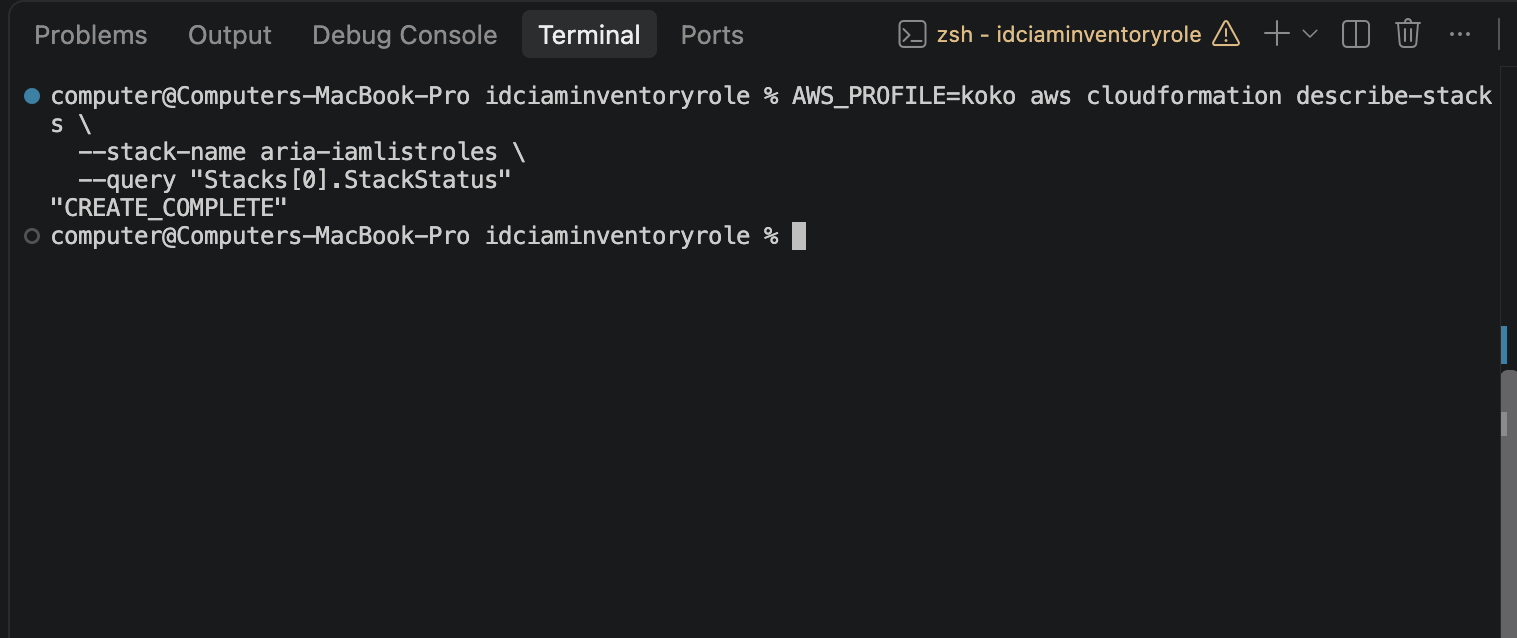
7. Deploy the Cross-Account Access Analyzer Roles
The role exists to let the prod-side Lambda assume a role in the management account, then read the org-scoped findings from the analyzers there. Only required when the Access Analyzer administrator is different from the ARIA deployment account.
cd source/accessanalyzerpoller/
AWS_PROFILE=<management_account_profile>
aws cloudformation deploy \
  --template-file aria-access-analyzer-poller-role.yaml \
  --stack-name aria-access-analyzer-poller-roles \
  --parameter-overrides \
    TrustedAccountId=<prod-account-id> \
    AccessAnalyzerPollerLambdaExecutionRoleArn=<poller-role-arn> \
    AccessAnalyzerUnusedDispatcherLambdaExecutionRoleArn=<dispatcher-role-arn> \
    AccessAnalyzerUnusedWorkerLambdaExecutionRoleArn=<worker-role-arn> \
    InternalAccessAnalyzerArn=<internal-analyzer-arn> \
    ExternalAccessAnalyzerArn=<external-analyzer-arn> \
    UnusedAccessAnalyzerArn=<unused-analyzer-arn> \
  --capabilities CAPABILITY_NAMED_IAM
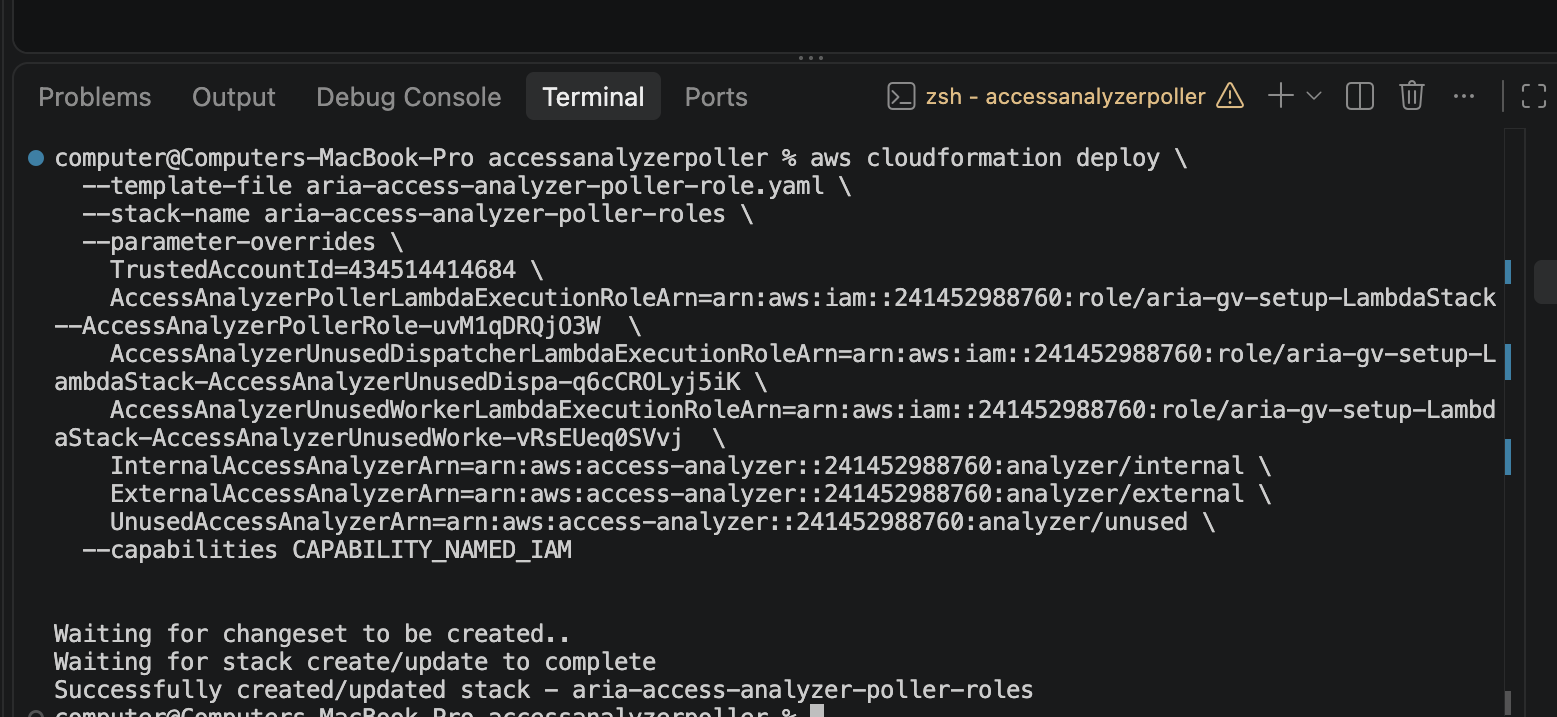
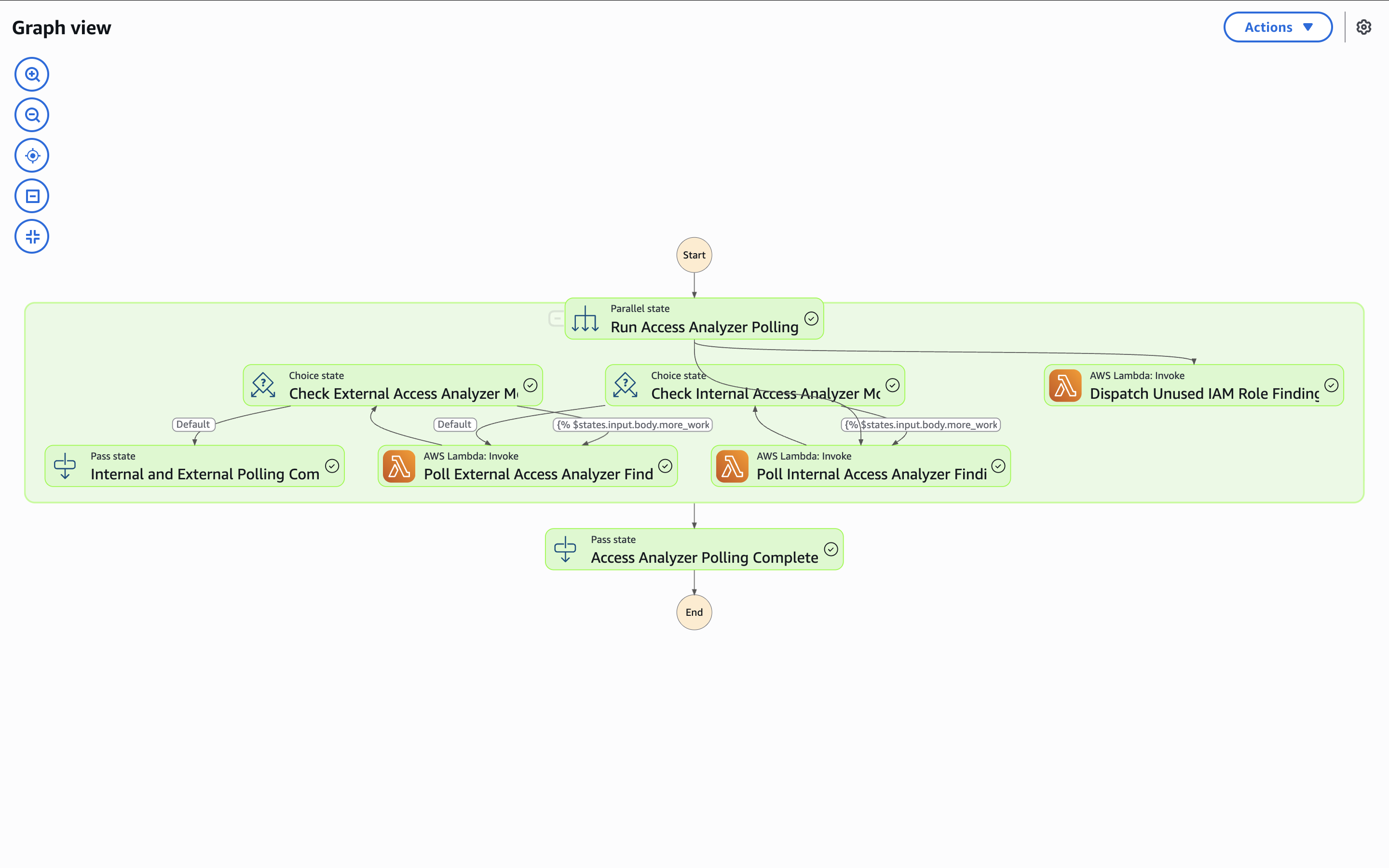
8. After a successful run, run the state machines, in order, from the AWS Step Functions console (or CLI)
The state machines help, which includes AriaStateMachine does the actual data collection. The AriaExportGraphStateMachine takes that collected data and exports it into a format Neptune can ingest.
AriaAccessAnalyzerStateMachine is the one that specifically exercises the cross-account poller roles, pulling in the External, Internal, and Unused Access findings from the analyzers.
aws stepfunctions list-state-machines --profile <prod_account_profile> --region us-west-2 --query "stateMachines[?contains(name, 'Aria')].{Name:name,Arn:stateMachineArn}"
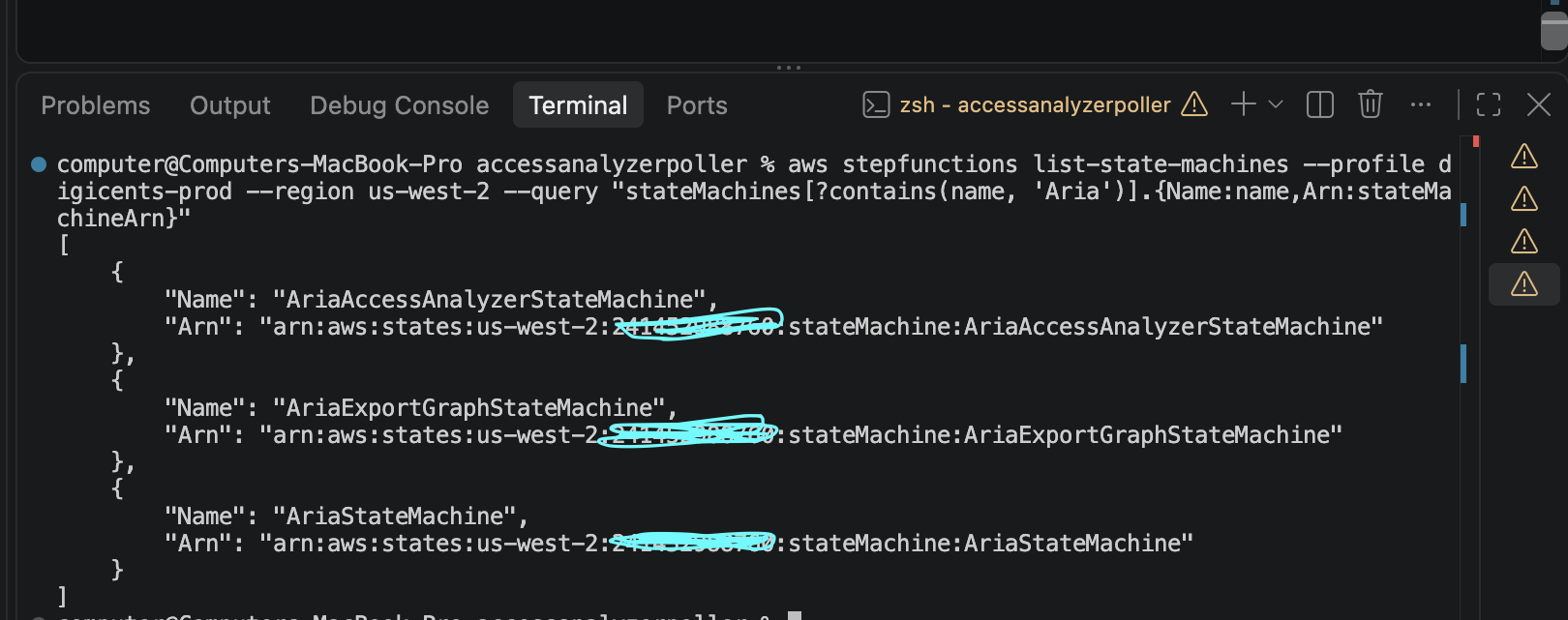
9. Finally, to visualise the graph, we will have to launch the state machines, grab the ARN for each state machine starting withAriaStateMachine, then start an execution:
aws stepfunctions start-execution \
  --state-machine-arn <AriaStateMachine-arn> \
  --profile <prod_account_profile> --region us-west-2
You should see this on a successful run
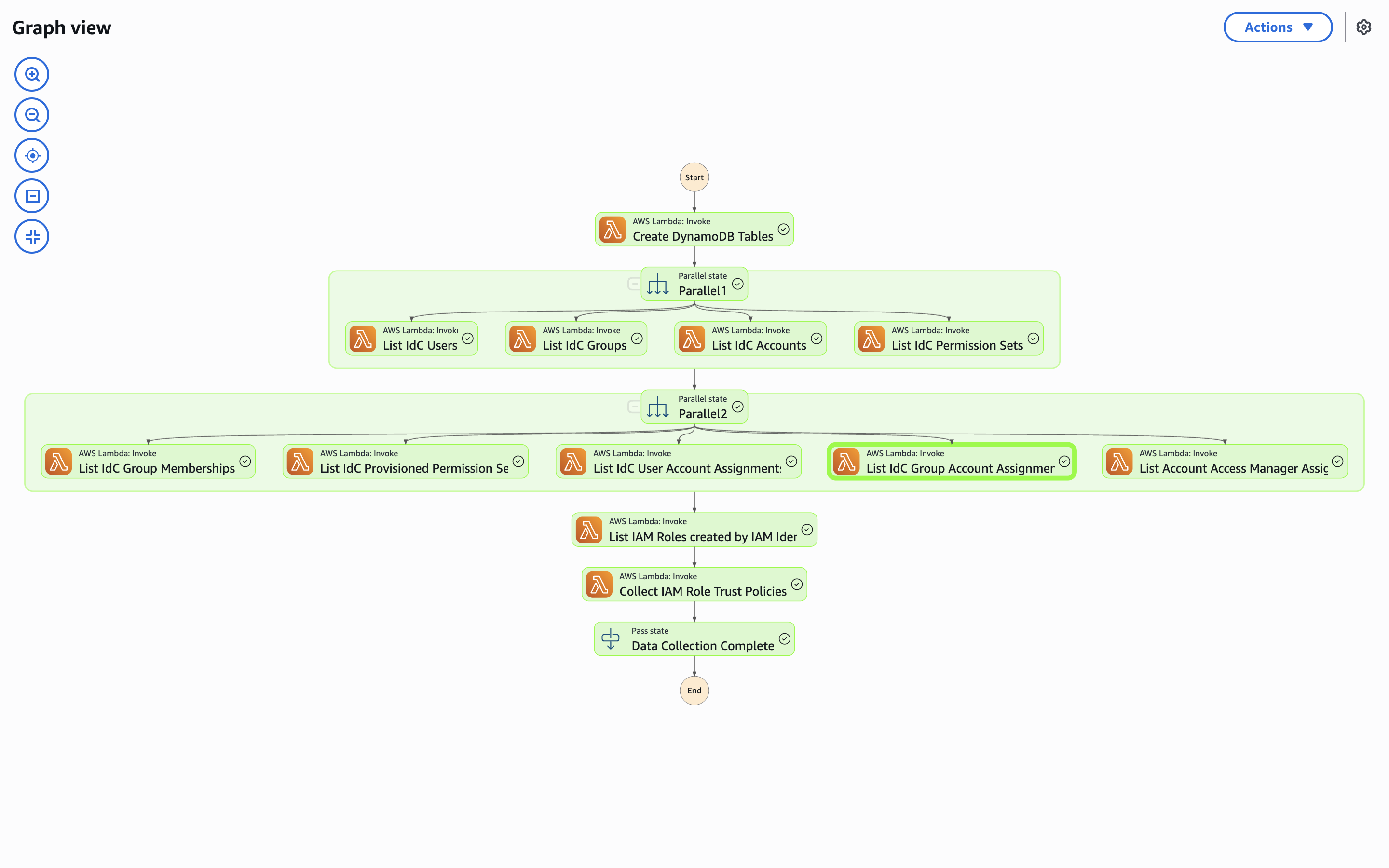
Then run the same execution command for the AriaExportGraphStateMachine
and use its execution role to view it in the Step Functions console
aws stepfunctions start-execution \
  --state-machine-arn <AriaExportGraphStateMachine-arn> \
  --profile <prod_account_profile> --region us-west-2
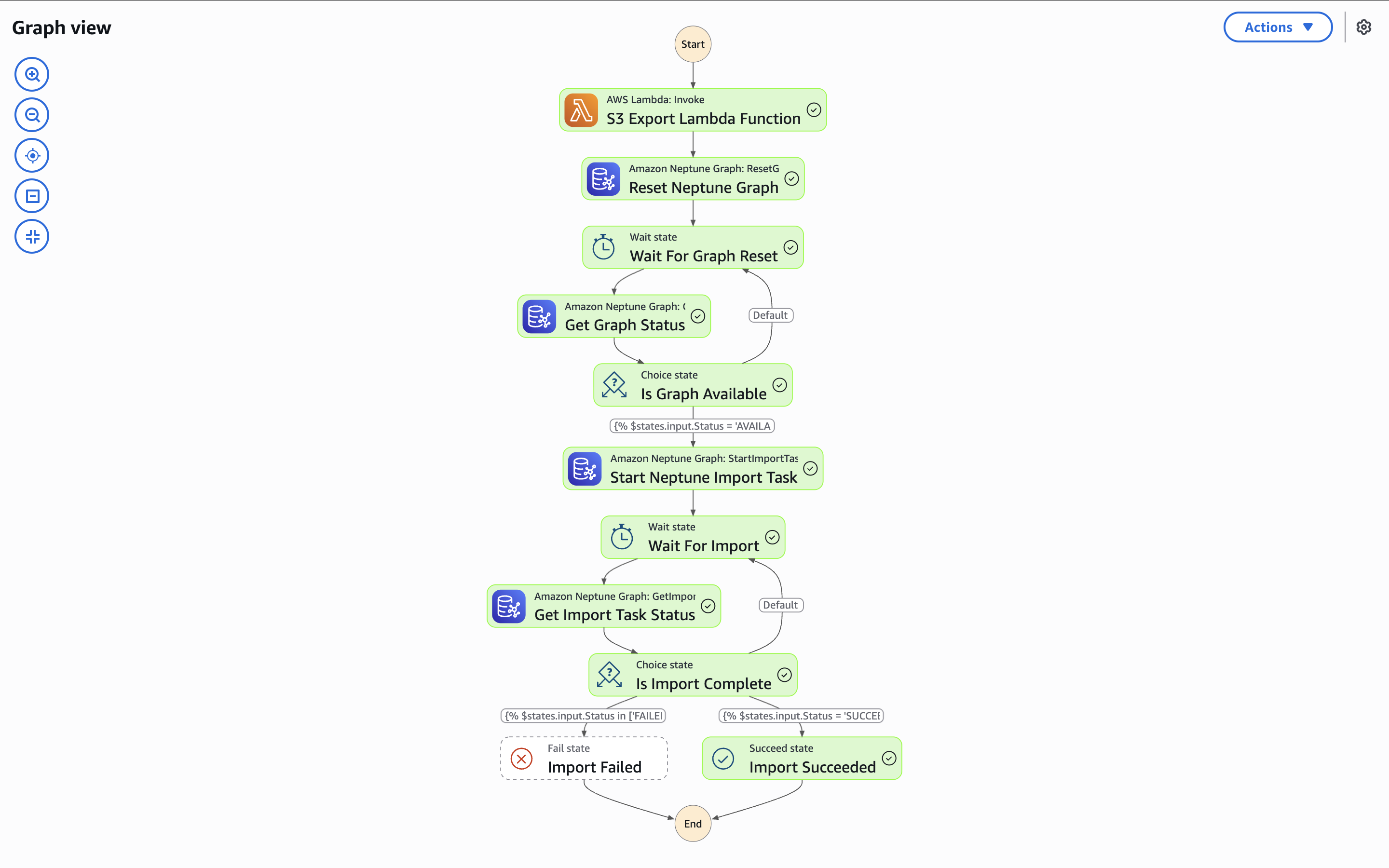
Finally, run the same execution command for the AriaAccessAnalyzerStateMachine and use its execution role to view it in the Step Functions console
10. Check out the Neptune Console from the Prod account to view the relationships. This is where you re-answer Chris's four questions visually:
But first, you will have to re-run these commands to set the deploy-neptune-notebook to true
export AWS_PROFILE=<prod_account_profile>
export AWS_REGION=us-west-2
export AWS_PAGER=""

./deploy-nested-stacks.sh \
  --region "$AWS_REGION" \
  --deploy-neptune true \
  --deploy-neptune-notebook true \
  --internal-access-analyzer-arn "<internal-arn>" \
  --external-access-analyzer-arn "<external-arn>" \
  --unused-access-analyzer-arn "<unused-arn>" \
  --delegated-admin-account-id "<delegated-admin-account-id>" \
  --debug \
  2>&1 | tee deploy-nested-stacks.log

echo "Real exit code: ${PIPESTATUS[0]}"
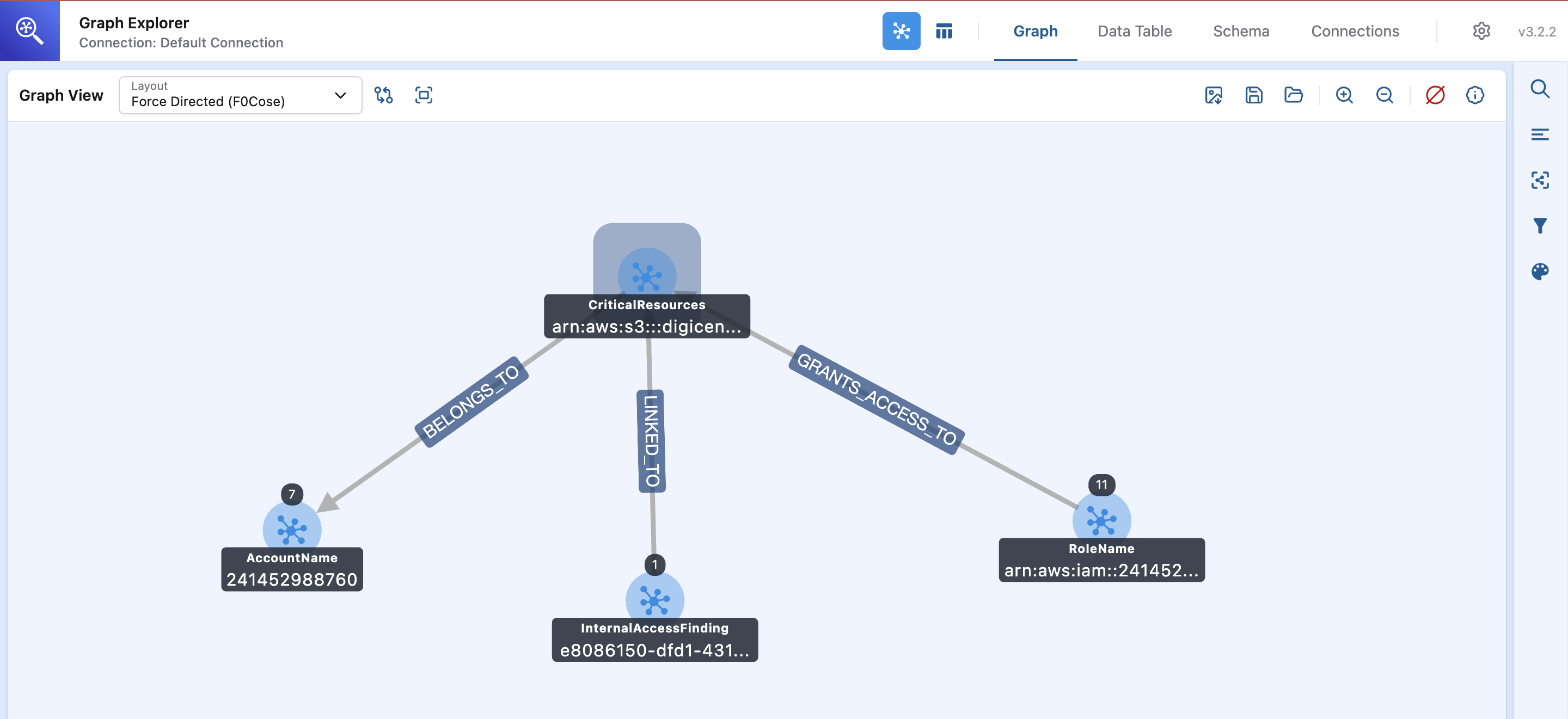
Go to the Console, and open Neptune -> Notebook -> Open Graph Explorer
and select the "digicents-customer-data-prod" resource we wanted
Can Chris get his answers now?
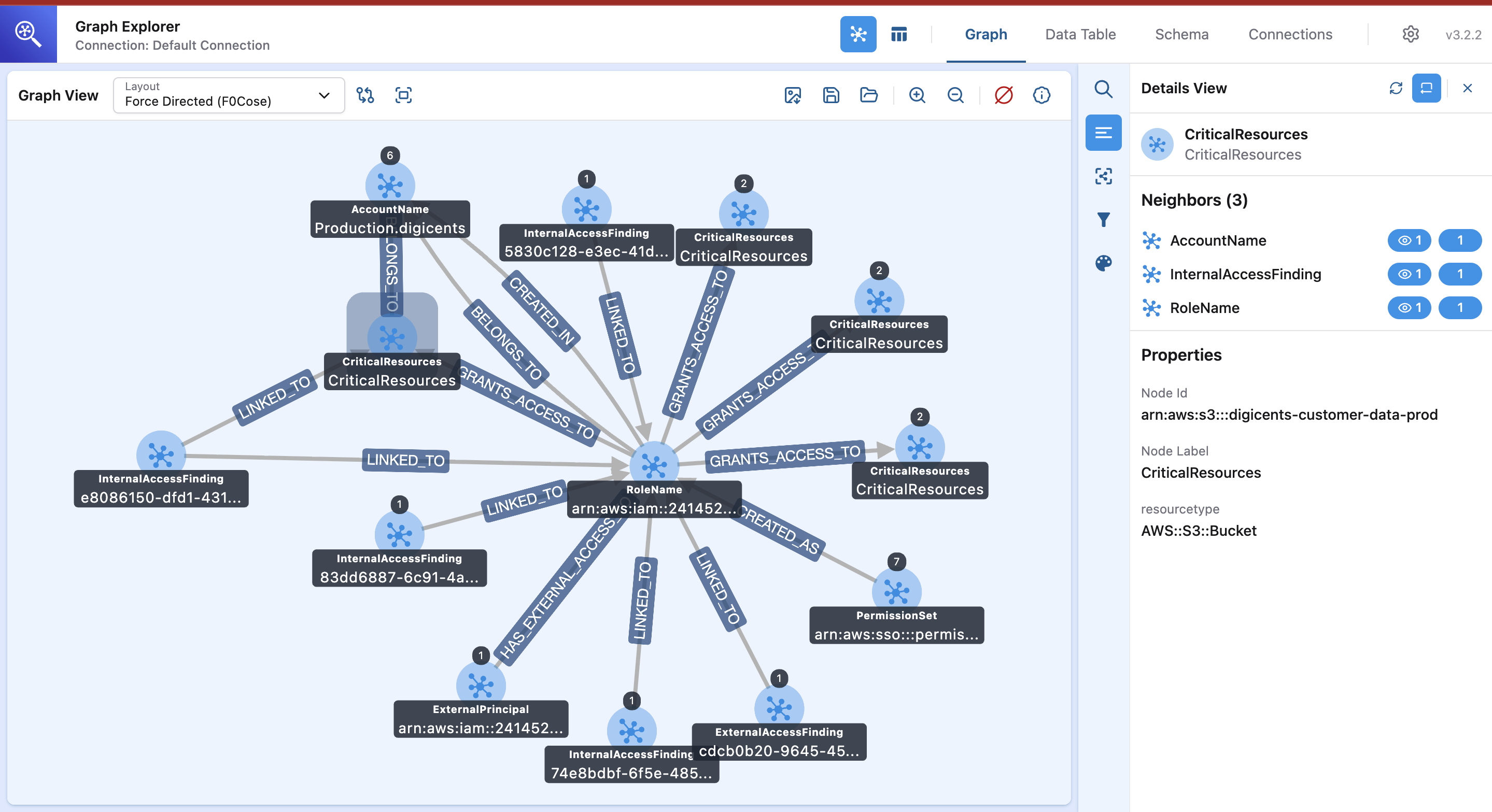
Yes. Expanding each node shows every relationship connected to the digicents-customer-data-prod bucket: internal findings, external findings, unused access, all of it sitting in one place instead of three separate reports. That's what actually gets Chris to his answer.
Conclusion
Lessons learned: make sure you terminate AI-assigned permissions after it's done its work.
Lastly, do not forget to tear down the infra after use to avoid incurring costs (it can get really expensive!!!)


